It came out of nowhere.
On November 4, OpenAI unexpectedly released Images 2.6, making it available across ChatGPT, Codex, and the API at the same time. The word that came up most often in the announcement wasn’t “image quality,” but “speed”: generation is 50% faster, and Flare can produce an image in as little as six seconds at the low-quality setting.
But speed isn’t what game teams should be paying attention to. The real story is the five new capabilities in this release: direct GIF generation, SVG export, reusable reference images, markup-based local editing, and the new complexity parameter.
We evaluated these features against the demands of a real game-art workflow. The verdict may be a little disappointing: only two and a half of the five are ready to slot straight into a production pipeline.
Anyone who’s worked in game art knows the late-night grind: drawing the same character ten times or revising the same line of UI copy five different ways. Those are exactly the kinds of nights OpenAI is trying to put an end to.
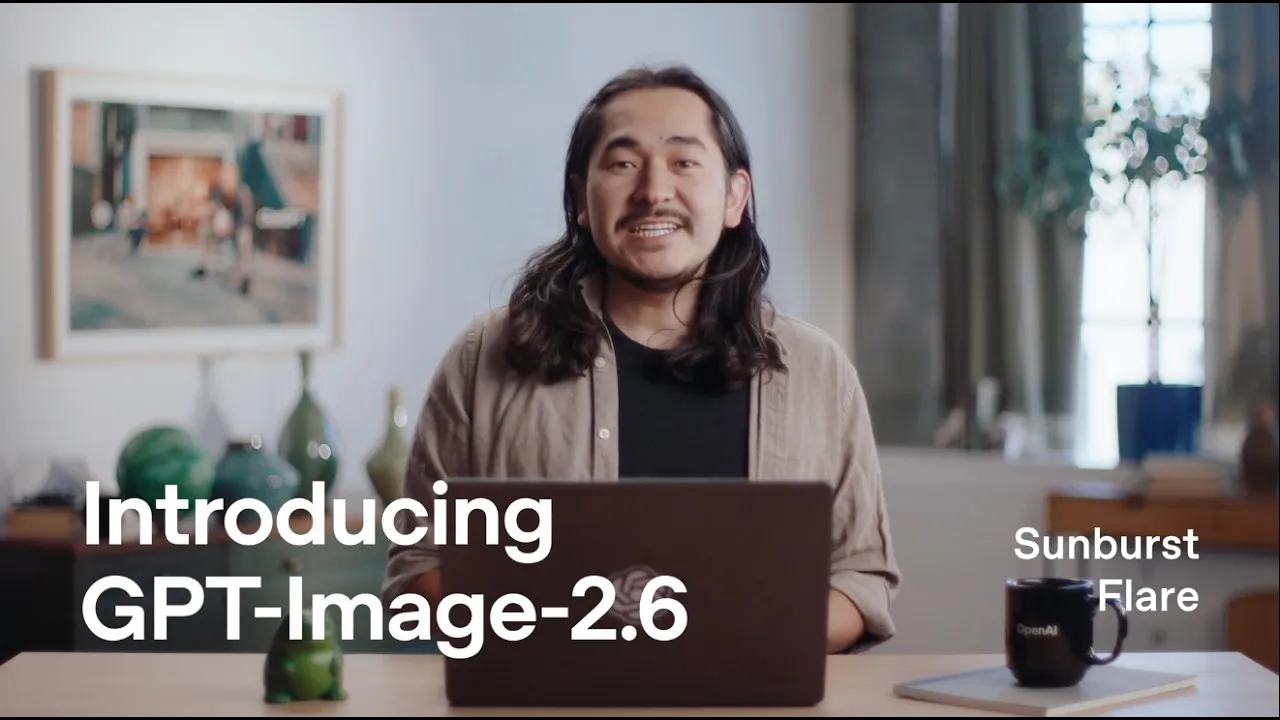
First, a few official numbers. OpenAI says people around the world now generate 4 billion images a week using ChatGPT, Codex, and the API—more than 500 million a day on average.
At that scale, the industry’s focus naturally shifts from “Can AI generate an image?” to “Can we edit it—and can we actually ship it?” That’s the lens through which to view 2.6.
A Reality Check: This Isn’t an Image-Quality Upgrade
On DesignArena’s image leaderboard, the top-scoring 2.6 Sunburst entry came in at 1,382, compared with 1,378 for 2.5 Sunburst. Flare scored 1,358 on 2.6 and 1,355 on 2.5. That’s a difference of just 3–4 points in both cases—effectively a tie. Because the same model can appear multiple times on the leaderboard at different quality settings, we used the highest-scoring entry for each version.
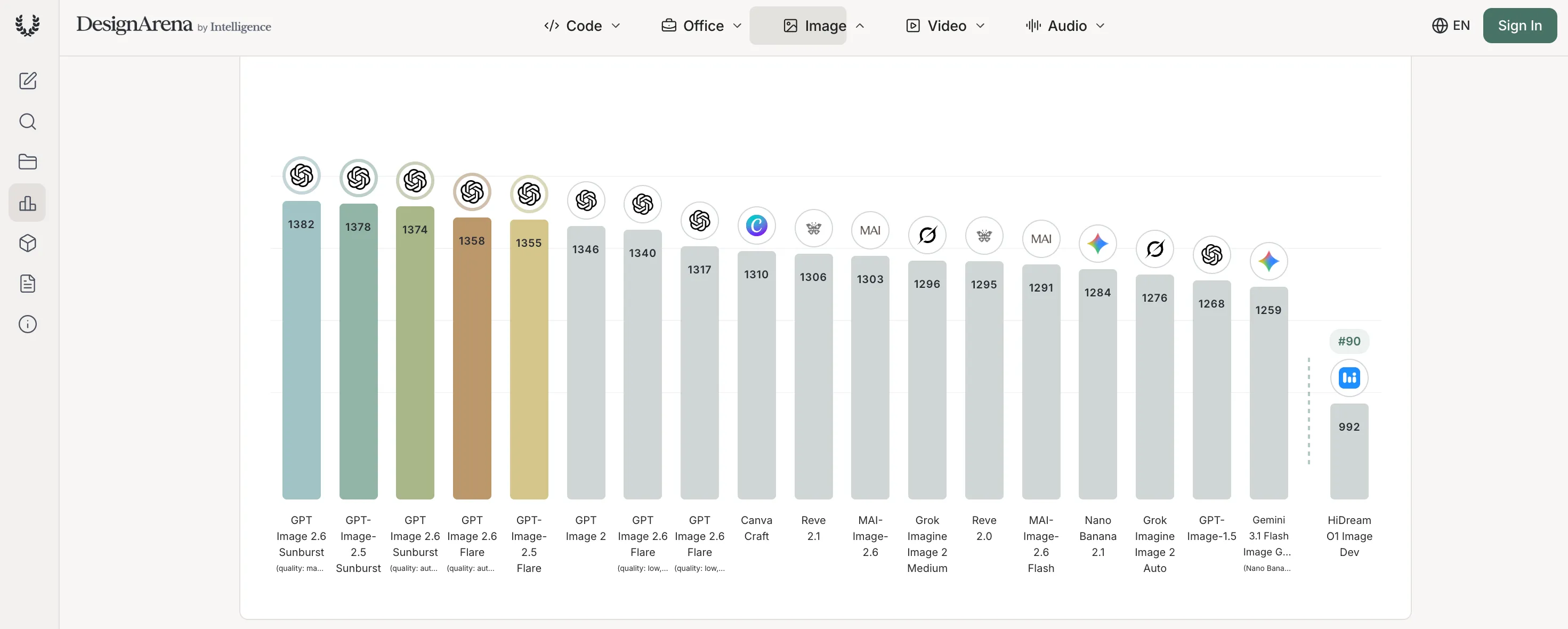
Scores don’t tell the whole story, but a gap of just 3–4 points suggests that image quality wasn’t the main thing OpenAI set out to improve with this update.
Think of 2.6 less as an image-quality upgrade and more as a move toward production tooling. It fills gaps in the workflow: animation, vector output, local edits, and planning for complex compositions. So rather than judging it by whether an image looks like something a human artist would make, ask a more practical question: will it save you a round of revisions?
Here’s what we mean by “two and a half”: reusable reference images and markup-based editing count as the two full features. SVG gets half credit—not because it’s useless, but because its practical applications are largely limited to UI icons. GIF is mainly useful in pre-production, while complexity is a control setting. Neither counts toward the total.
GIFs: Great for Animatics, Not Finished Animation
GIF generation is the most immediately obvious new feature. Describe what you want in plain language, and the model returns a looping GIF. You can set the frame count, the duration of each frame, and the image dimensions.
According to the API documentation, GIF output supports 2 to 16 frames, each lasting 20 to 2,000 milliseconds. The default is 9 frames at 200 milliseconds each. In CellCog’s tests, a 12-frame GIF took about 11 seconds to generate and cost roughly 5.6 cents.
In a game-art workflow, GIFs make the most sense in three places: animatic previews of character idle and walk cycles; loading animations and micro-interactions in the UI; and memes or reaction images for community engagement. Designers and animators can use them to get a feel for an action’s timing before committing to the actual animation.
But don’t mistake it for a finished-animation tool.
GIF supports only binary transparency—there’s no partial alpha—and animated WebP isn’t supported. Character details can shift from frame to frame, and the first and last frames often don’t join up into a seamless loop. In some tests, a request for 16 frames produced only 12, and the output was downscaled to 358 × 358. CellCog also spotted a discrepancy in the documentation: the table in the official guide says 2–64 frames, but the API schema sets the actual limit at 16. The two don’t agree.
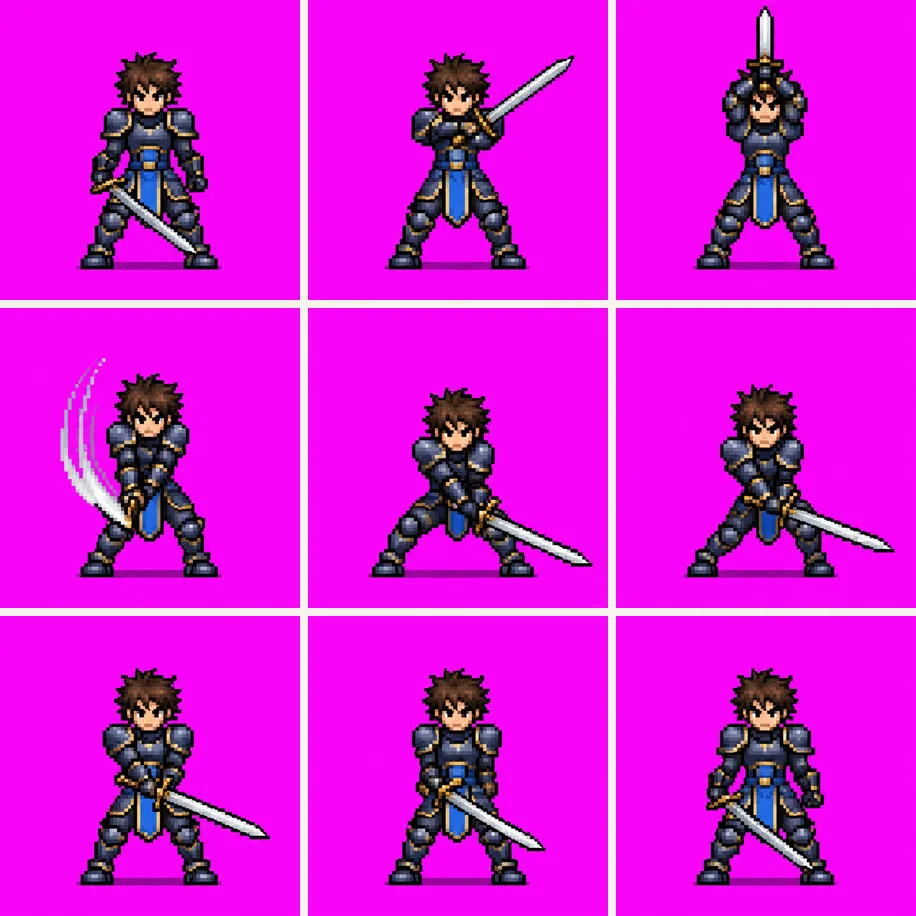
Our verdict: GIFs have a place in pre-production, but not in a production pipeline. They can save animators the time it takes to sketch out rough motion, but they won’t replace Spine, frame-by-frame animation, or hand-keyed animation.
SVG: Great for Icons, and Not Much Else
SVG is probably the feature most likely to be overhyped. Not because it’s useless, but because people may assume it lets them turn any image into a vector. In reality, it solves a much narrower problem: revising UI icons and logos.
In /v1/images/generations, set output_format to svg to get a true vector file. You can then edit the paths, shapes, and colors of simple icons in Figma or Illustrator. Until now, AI-generated icons were delivered as PNGs, so even changing a single stroke meant redrawing the icon. This feature genuinely saves time.
What is it good for? Skill icons, item icons, map markers, scalable HUD elements, and logos for store pages. For icon sets that need consistent stroke weights and viewing angles, using reference images alongside SVG output is much faster than manually cutting out each icon one by one.
But its limitations are more significant than you might expect.
Flat icons and logos are its sweet spot. It struggles with complex illustrations, UI designs heavy with gradients or textures, and interfaces that rely on layered animation. The SVG output is static and doesn’t support scripts, external resources, or embedded raster images.
No export button in the web app. This is an API-only feature: you can’t export SVGs from ChatGPT’s web app. And not every API aggregator passes through svg.model; in our tests, CometAPI returned a 400 error.
Text doesn’t always become vector paths. The Sunburst version in the official logo example still contains a <text> element. Open it in an environment without the matching font, and the text layout may change.
Generation only; no editing afterward. SVG output is supported by the generations endpoint, not the edits endpoint.
Still unstable at launch. CellCog sent 15 requests that evening; 14 came back with 502 errors.
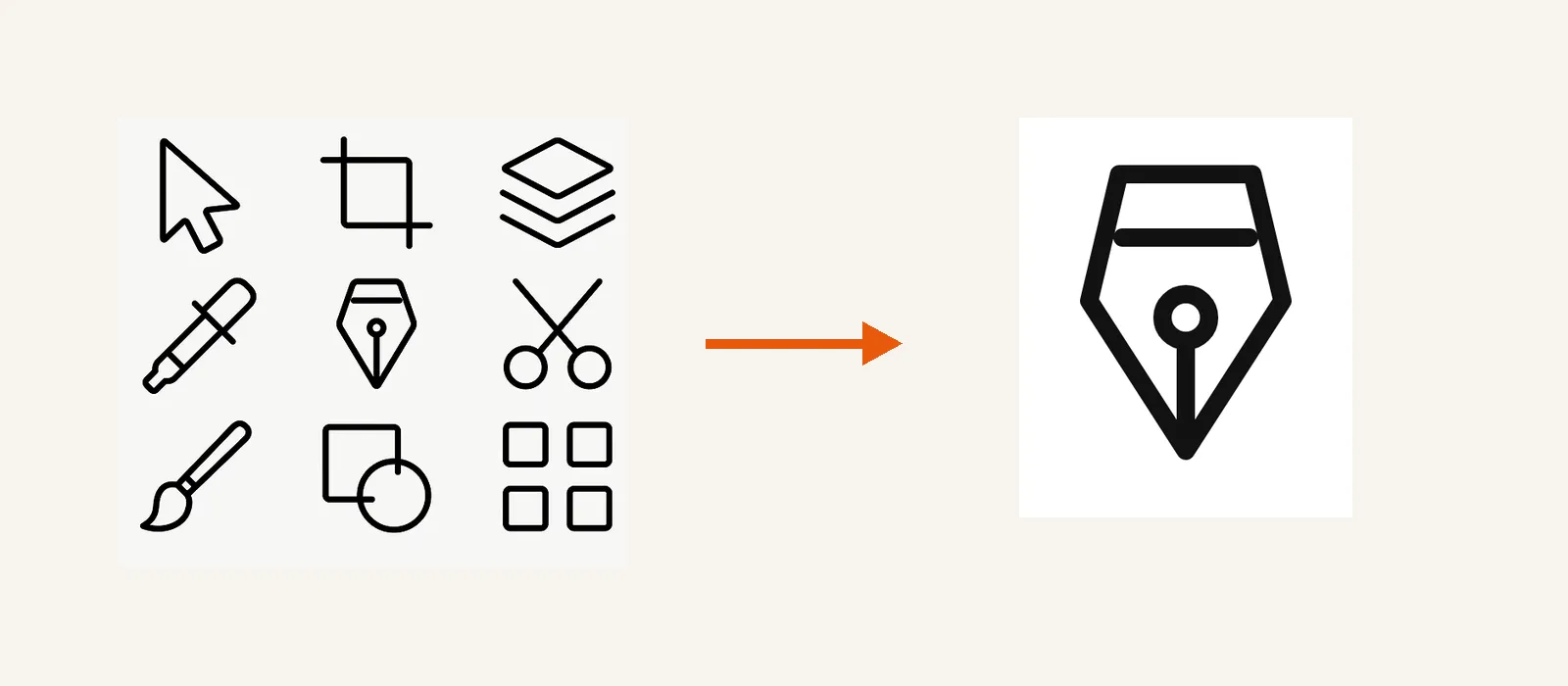
In short, SVG is a specialist tool for UI icons, not a general-purpose image format. It’s worth adding to a UI-icon workflow; just don’t expect it to handle characters, environments, or animation.
For UI teams, the test is simple: try ten icons. If you can edit eight of them directly in Figma, the feature has earned its place in your workflow. If all you can do is preview them, they’re still just drafts.
Reference Images and Markup: Not Flashy, but They Save the Most Rework
The two least flashy features are also the ones most likely to make a real difference to a game-art workflow.
Reusable reference images address a familiar problem: keeping a character consistent across multiple images. The API accepts up to 16 input images, and ChatGPT also lets you save characters, pets, and style references so you can reuse them later. Character turnarounds, alternate skins, item sets, dialogue portraits—any task where every image needs to look like it belongs to the same cohesive character or asset set—now has a workable starting point.
Markup-based local editing tackles a different problem: changing just one part of an image. Mark the area you want to change on a transparent overlay, then describe the edit in text. The model changes the marked area; the API offers a similar workflow using a mask. Whether you’re updating UI copy, recoloring an item, fixing a hand, or creating A/B variants, this is more reliable than regenerating the whole image.
One important caveat: markup was already available in 2.5. Version 2.6 simply brings it officially to the API. So it isn’t exclusive to 2.6, but it’s still the feature from this release I’d most recommend adding to your workflow right away.
Neither feature is flashy, but both target the most time-consuming part of game art: revisions. The first draft is rarely the bottleneck. The third or fifth round is where the hours disappear.
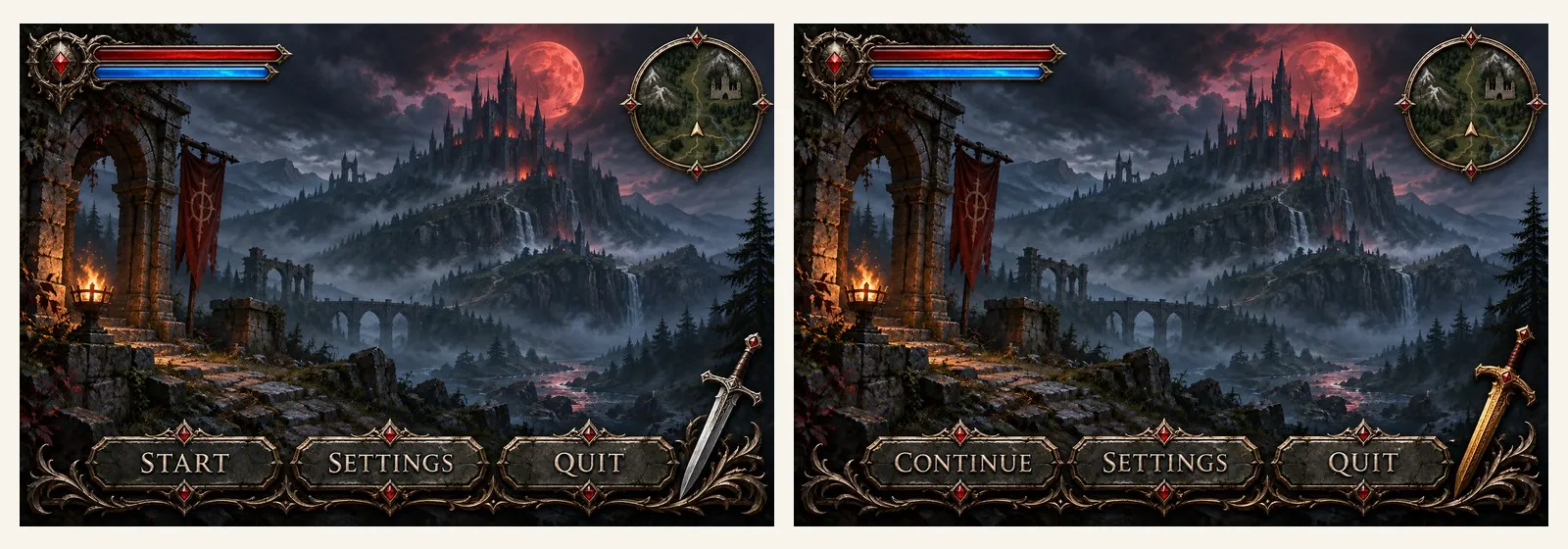
Complexity: A Dial That’s Easy to Get Wrong
Complexity is a new parameter in 2.6. It controls how much planning the model does before it starts rendering—something quite different from the quality setting.
OpenAI offers three settings: low, medium, and high. High is the default, and it doesn’t cost extra. For a background change, a sign edit, or a tweak to a single element, low is usually enough. Save high for HUDs and scenes with lots of elements, dense text, or complicated relationships between objects.
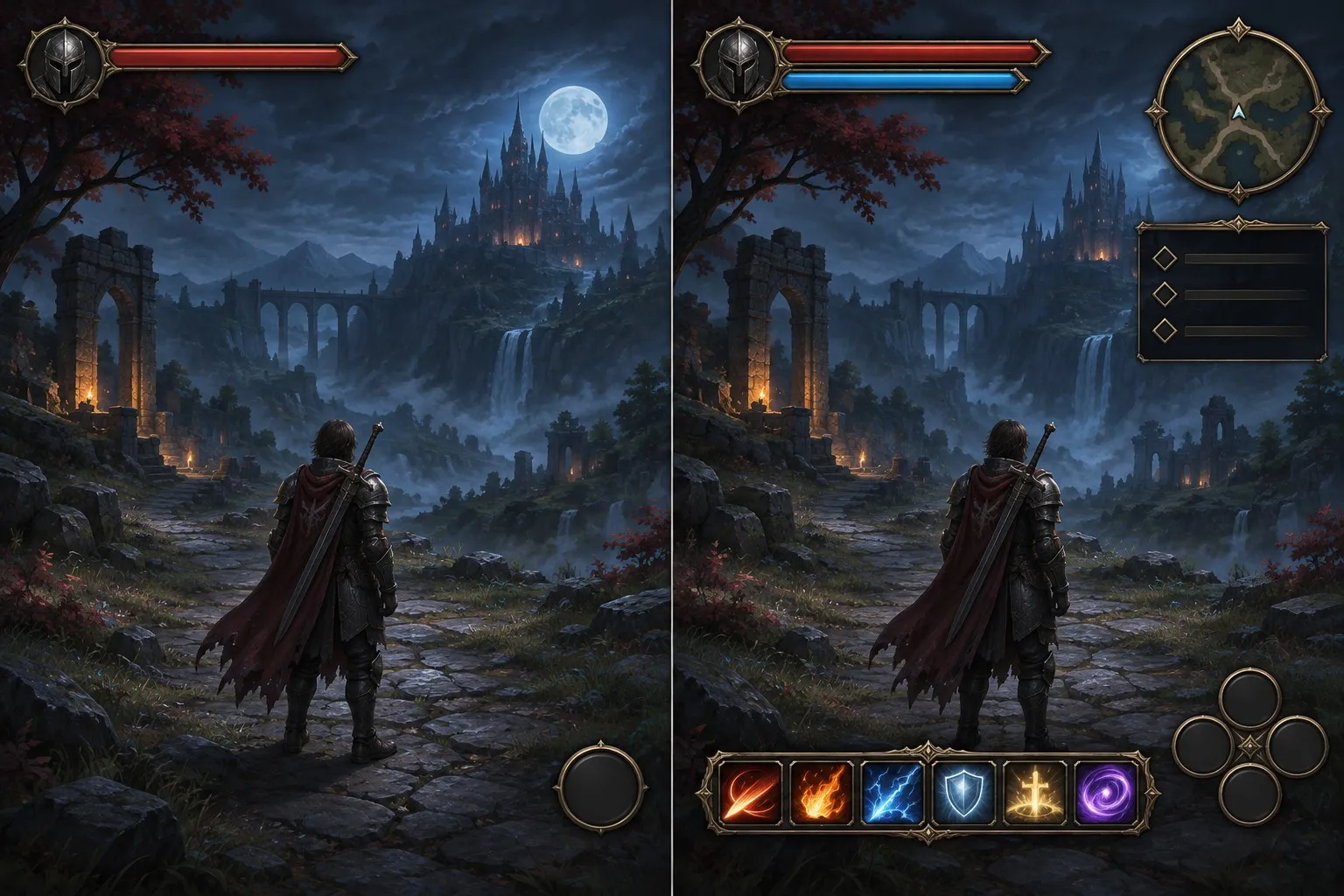
In the same scene, low keeps only the essentials, while high fills out the interface with a skill bar, minimap, and quest tracker, tying those elements into a more complete layout.
The catch is that many people will leave high on simply because it doesn’t cost extra. But high also increases latency and can introduce changes you didn’t ask for. Game teams are better off choosing the setting to match the task: use low for sketches and local edits, and high for complex interfaces and key concept art.
How to Fit It into a Game-Art Pipeline: Three Rules
If you just want the practical advice, here are three rules to remember.
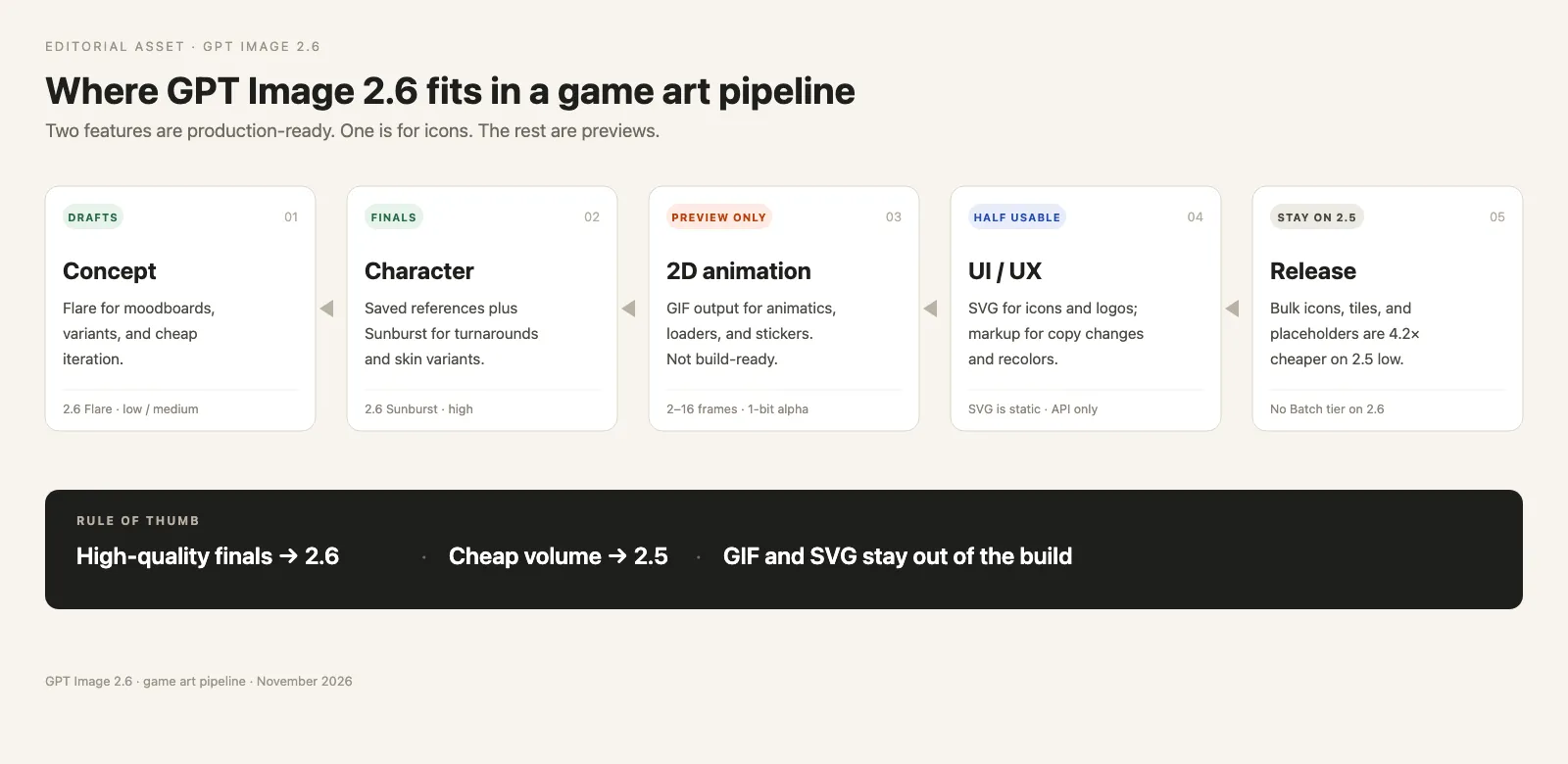
Use Flare for drafts and variations. It’s fast, which makes it a good fit for brainstorming, placeholder art, and rapid batch iteration.
Use Sunburst for final assets and iterative edits. At medium or high, it does a better job of keeping characters, outfits, and item details consistent, making it the better choice for finalizing character designs and building cohesive asset sets.
For small images generated in batches, stick with 2.5. Although 2.6 is faster at the low setting, the output-token count for a 1024 × 1024 image jumps from 196 to 824—about 4.2 times as many tokens, and roughly 4.2 times the cost. The medium setting also goes from 439 to 1,449 tokens. At high and above, the two versions cost the same, while 2.6 runs about twice as fast. 2.6 also doesn’t yet offer the half-price Batch tier.
Put simply, 2.6 isn’t a wholesale replacement for 2.5: move quality-critical work to 2.6 and leave cost-sensitive tasks on 2.5.
The Takeaway
This time, OpenAI has focused less on making AI-generated images look like something a human artist would create and more on making the model useful as a production tool.
For the game industry, that means AI image generation is finally starting to take on some of the most tedious, labor-intensive parts of the pipeline: revisions, alignment, export, and delivery. GIFs speed up pre-production previews; SVG makes UI icons editable; reference images and markup cut down on rework; and the complexity setting gives teams more control over complicated compositions.
But AI is still nowhere near replacing artists. Think of it as a quick-thinking intern: it can produce drafts, make local edits, and give you ten options. But deciding which version is good enough to ship is still a human’s job.